User overview
Grom’s Flutter client runs as a web UI and as an Android app. The web UI is served by the same grom process: open the server’s base URL in a browser (for example http://localhost:8080/ with the default dev config). The screens and flows match the Android app; live GPS recording is Android-only. UI strings are available in English, Russian, and German.
When you are not signed in, Home shows a welcome screen with the Grom logo, a short description, and Sign in / Register buttons. On Android the welcome text also reminds you to enter the Grom server address when signing in.
On Android (and later iOS), sign-in and registration ask for a server URL. You can enter a bare host such as grom.example.com (no https:// required), or open the dropdown next to the field and pick an approved public server or one you have already used. On submit the app probes GET /api/v1/status over HTTPS, then HTTP, writes the resolved URL into the field, and continues. If you already type http:// / https:// or an explicit port, that value is used as-is. HTTP is supported for local / LAN instances without TLS; prefer HTTPS for anything reachable on the public internet.
Sign-in and password reset
If the operator enables outbound email (mailer in server config), the sign-in screen shows Forgot password?. Enter your account email; the server always responds the same way whether or not the address is registered. Check your inbox for a reset link and open it in a browser (the web UI at /reset-password). After you set a new password, sign in again in the app or on the web. Password reset is unavailable when the server reports password_reset_enabled: false.
When your session JWT expires while the app is open, Grom signs you out, opens Sign in, and shows a short message. The email field remembers the last address you used. Opening the app with an already-expired token simply returns you to the guest welcome screen without that message.
When the operator enables captcha (auth.captcha.enabled), sign-in, registration, and forgot-password show an I'm not a robot checkbox. Tick it and wait for the local proof-of-work check to finish before submitting (it may take a moment on slower devices). Setting a new password from the email reset link does not require captcha.
Profile and account deletion
From Profile, use the overflow menu to edit your profile or Delete account. Full steps, what data is removed, and federation notes: Delete your Grom account.
Tap an athlete (avatar or name on a workout card or detail, a row in User search, someone in Following/Followers, or a liker/comment author) to open their profile inside the main app shell: the side menu stays visible and Profile is selected. Tapping yourself opens your own Profile screen (edit name/avatar, Following/Followers, overflow menu) with Back to the section you came from — except when you are already on that Profile from the side menu, where a self-tap does nothing. On someone else’s profile you can Follow or Unfollow, open their Following/Followers lists (and open further profiles from there), and browse their workouts like the home feed. Opening a workout from that list uses the in-shell detail screen; Back closes the workout, then returns through nested profiles, then to the section you came from (for example Home or User search). Choosing Profile in the side menu while viewing a stacked profile (yours or someone else’s) switches to your side-menu Profile.
Signed-in users can view local workouts on another user’s profile without following them first. For federated (remote Grom) athletes, the profile loads public outbox workouts when available; map, track, and charts use a live fetch. Likes and comments on remote workouts still require an active Follow (so the workout is in your federation inbox). Non-Grom fediverse accounts may show a profile card and Follow without a workout list.
This page is a short tour of the main screens (screenshots below are from Android). Admin setup (install, config, TLS, federation) lives under Admin docs. For the HTTP API, see Swagger at /api/docs/ on a running server.
Workouts
Your home feed lists activities with type, date, device, distance/time (and pace or elevation when relevant), plus a map preview when a GPS track is attached. On Home, the My workouts tab can filter by sport type: use the filter icon in the app bar (shown only on that tab when you have at least one used sport) to show toggle chips for sports from your profile. The same tab has a list/cards toggle (next to the filter when shown): compact rows show sport icon, date, name, and distance or duration depending on the sport category; the choice is remembered on the device. Each card shows a social bar under the map and photos: likes on the left (thumb up to like or unlike someone else’s workout; tap the count for likers) and comments on the right (count + comment icon). You cannot like your own workouts; the like button stays disabled on yours. Anyone can comment on their own or others’ workouts. Tap the comment control to open the thread, add a comment (up to 1000 characters), or delete a comment you wrote (workout owners can also delete any comment on their workout).
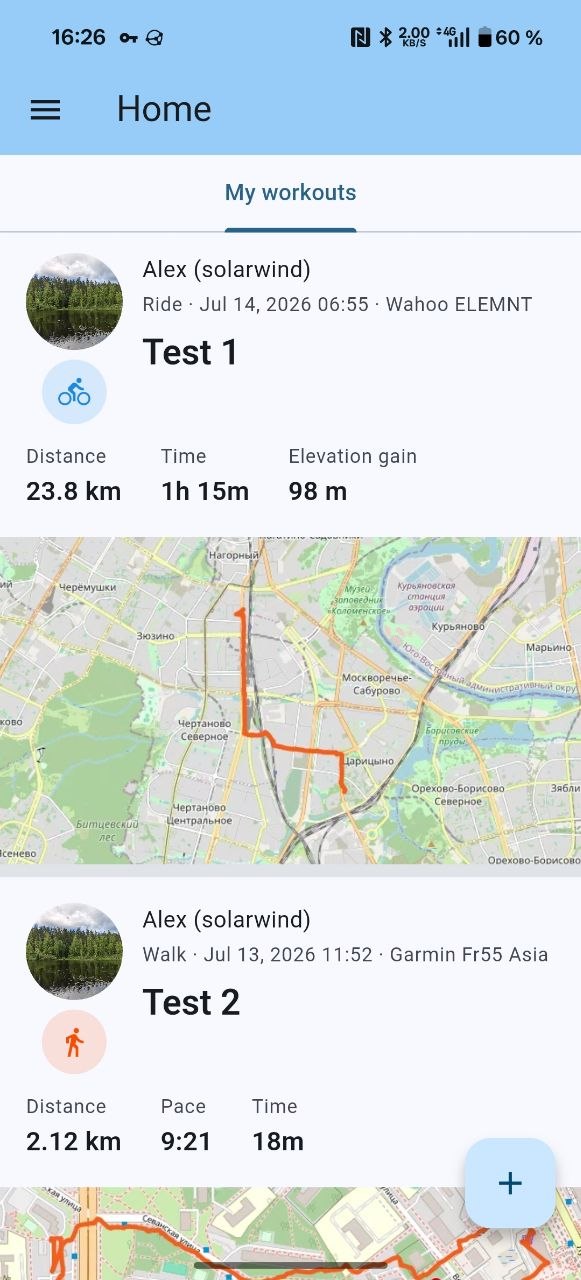
Open a workout for the full card: interactive map (when a track is present), photo gallery, the same social bar as in the list, a speed-over-distance chart with average and maximum speed (or a pace chart with average and best pace for running and walking sports), a heart-rate chart (distance when GPS is present, otherwise elapsed minutes) with average and maximum heart rate, and a cadence chart for cycling and foot sports (except wheelchair) when the track has cadence data — rpm for cycling, steps/min for running and walking (display values follow Strava’s foot cadence convention). Average cadence also appears in the stats grid when available. Tap a chart to see values at that point.
You can create workouts manually, import GPX/FIT tracks, attach photos, and link equipment. When editing a workout you can add or remove photos (up to 20). On create, the workout name defaults to the localized sport type and follows sport changes until you edit it. On Android you can also record a live GPS track (see below).
Live recording (Android)
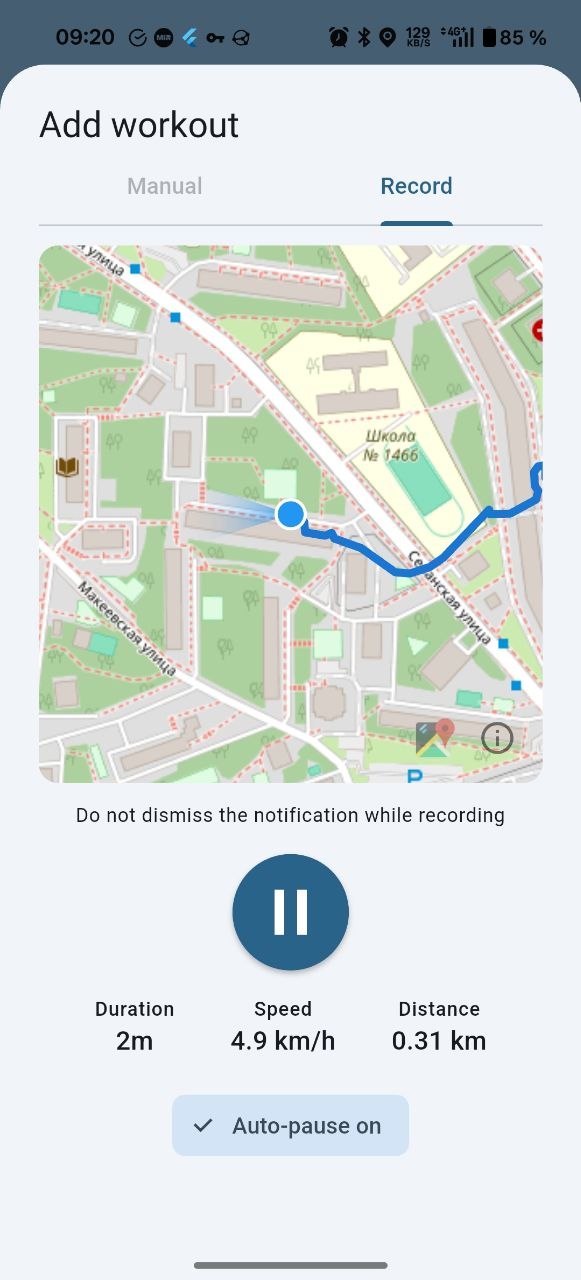
Open Add workout → Record to track a route on the map with live duration, speed, and distance. Keep the recording notification while the session is active. Auto-pause can be toggled on or off.
Equipment
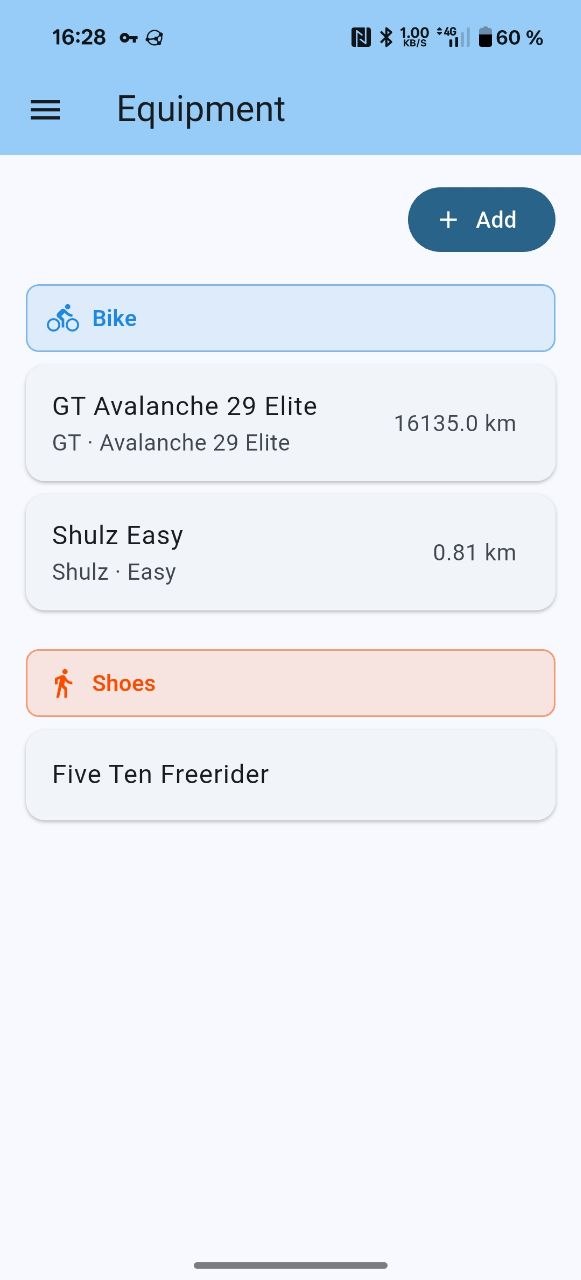
Manage bikes, shoes, and other gear. Items are grouped by category; distance totals accumulate as you use gear on workouts (including after Strava bulk import).
Social and federation
Follow other users on the same instance and browse a shared feed. On User search, the screen lists all other local users on the server (with icon Follow/Unfollow buttons); you can still search by nickname or federated handle. Tap a user row to open their profile. Like and comment on local workouts from any signed-in account; for federated workouts, likes and comments work after you follow (counts appear on list and detail screens).
When the operator enables ActivityPub federation, you can also follow athletes on other Grom instances (HTTPS required on the server). Remote Grom profiles can show public outbox workouts; likes on remote workouts are sent as ActivityPub Like activities; removing a like sends Undo. Comments on remote workouts are sent as Create Note with inReplyTo; deleting a comment sends Delete. Incoming likes and comments from other instances update the local workout the same way. Account deletion and federated actor Delete behavior are described in Delete your Grom account.
Notifications (Android)
On Android, when someone likes or comments on your workout (including from another federated instance), or when someone follows you, Grom can show a system notification. For likes and comments the title is the workout name; a single like or comment names the other user, and several in a row collapse to a count. Opening the workout from the app or tapping the notification clears that collapse. For a new follower the title is localized as “New follower: …”, with an empty body and no collapse; tapping opens that user’s profile. Grant notification permission when prompted. On devices without Google Play Services you can use a UnifiedPush distributor such as ntfy. Sign-out unregisters the device.
Strava import
From Integration → Strava, upload a Strava bulk data export ZIP. Grom imports activities, tracks, photos, and equipment. Column mapping and server-side behavior are documented in Strava bulk import.
On Android only, you can also enable Import workouts from Strava with your own Strava API Client ID/Secret, connect once via OAuth, then use the Home sync button to pull recent activities (count is configurable on the Integration screen, default 10; stops at the first already imported). Details: Strava API import.
Import tracks
On Integration → External services, Import tracks opens the system file picker for one or more .gpx / .fit files (web and Android). Details and external_id dedup: Import tracks.